


WordPress beta testing is useful when you want to find compatibility problems before a new release reaches your live website. It is not an invitation to turn a business-critical site into an experiment. A separate copy, clear test cases, and a small set of recorded results let you explore upcoming changes while keeping customer-facing work stable.
What changed in 2026
WordPress 7.2 Beta 5 was announced on November 10, 2026. The official post describes it as testing software, not a production release, and discusses continuing accessibility, compatibility, and editor refinements. Plans can change during a beta cycle. Check the current release notice before testing rather than treating a development build as the latest stable upgrade.
Source: WordPress 7.2 Beta 5 announcement. News context checked November 15, 2026.
1. Give WordPress beta testing its own environment
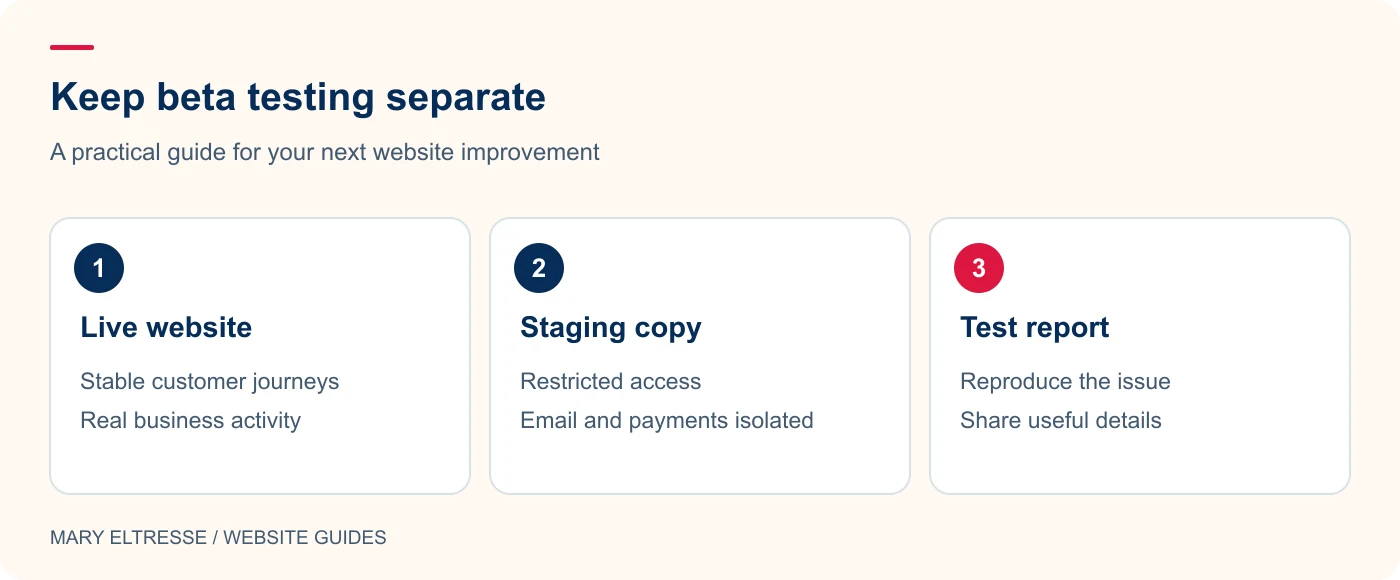
Create a staging or local copy with a recognisable address and a clear visual reminder that it is not production. Record which database and uploads directory it uses. Disable live email, payment processing, webhooks, and other actions that could contact real customers or update external systems. A copied site can contain real credentials even when the URL is different. Restrict access to the environment and review exported data before sharing a reproduction with another developer.
2. Establish a reliable comparison point
Before installing the beta, complete the same short test on the current stable copy. Open representative pages, save a draft, edit a template, submit a form, and sign in as a member if the site has memberships. Note existing warnings so you do not attribute every problem to the new build. Take screenshots of layouts that are especially sensitive to spacing or typography. Keep the original staging snapshot available so you can reproduce a difference later.
Example: Hypothetical example: You want to try a new editor feature. Create a staging copy with restricted access, disable outbound customer emails and live payment actions, and use sample customer data where possible. Test the feature there while the public website stays on its supported stable release. A staging label alone does not isolate integrations.
3. Test templates as well as individual articles
A block theme can behave correctly in a post editor while showing a problem in a shared template. Review the header, footer, archive, search, single-post layout, and any reusable patterns. Check a narrow mobile screen and a wider desktop screen. Use the keyboard to reach navigation, buttons, and form controls. If you customise Gutenberg blocks with CSS, inspect whether the intended selectors still match the rendered markup instead of relying solely on the editor preview.
4. Separate core compatibility from plugin behaviour
When something fails, record the WordPress build, PHP version, active theme, and relevant plugin versions. Reproduce the problem with the smallest safe combination of components on the test copy. Do not start disabling plugins on the live site to investigate a beta issue. If PHP is also changing, test that separately where possible; changing two major parts at once makes diagnosis harder. A focused report is far more useful than a general statement that the editor is broken.
Example: Hypothetical example: A navigation menu stops opening on a phone in the beta copy. Record the browser, viewport, WordPress version, theme, active plugins, and exact steps. Repeat the test with a default theme in the isolated environment to narrow the cause. Share the smallest reproducible case without including customer records or secret credentials.
5. Decide what the test means before deploying
A successful staging test is useful evidence, not a guarantee that every production integration will behave identically. Document the scenarios you covered and the ones you could not reproduce, such as payment-provider callbacks or production-only caching. Keep beta findings on a separate list from urgent security maintenance. My website handover questions can help make responsibility clear. Repeat critical tests when the final release is available rather than deploying the beta because it appeared to work.
Your practical checklist
- Label the staging copy clearly and restrict access.
- Disable outbound services that might affect real customers.
- Record the stable baseline before installing the beta.
- Test editor, template, mobile, keyboard, and account workflows.
- Reproduce each problem with precise version information.
- Keep a rollback snapshot and document what was not tested.
Frequently asked questions
Can I use a beta on my live business website?
The official Beta 5 announcement says it is for testing and development. Use a separate environment and follow the production release guidance when a stable version becomes available.
Do I need to upgrade PHP at the same time?
Not for the purpose of isolating a WordPress beta test. Check the release requirements, then test PHP compatibility as its own planned change whenever possible.
Make your next website improvement count
Planning a custom block theme or a complex upgrade? Ask Mary Eltresse to help turn WordPress beta testing into a repeatable compatibility checklist.