

A WordPress security update should be prompt, controlled, and easy to verify. The goal is to close known weaknesses without leaving you guessing whether your contact form, checkout, or membership area still works. For a business website, clicking Update is only one step. A short preparation checklist and a focused post-update review make the whole job more dependable.
What changed in 2026
WordPress announced version 7.1.4 on October 28, 2026, identifying it as a security release and recommending immediate updates. The announcement covers multiple issues. This article uses that release as a timely reason to review your maintenance process; the checklist below is practical operating advice, not a claim that every site has been compromised.
Source: WordPress 7.1.4 security release. News context checked November 15, 2026.
1. Identify the WordPress security update you need
Open the official release announcement and compare it with the version actually running on your site. Do not rely on an old screenshot or assume your host completed an automatic update. Record your WordPress, PHP, theme, and important plugin versions in the maintenance note. If your site is on a different supported branch, ask the maintainer which patched release applies. A version number is evidence; a reassuring dashboard message alone is not a complete verification.
2. Make recovery practical before changing files
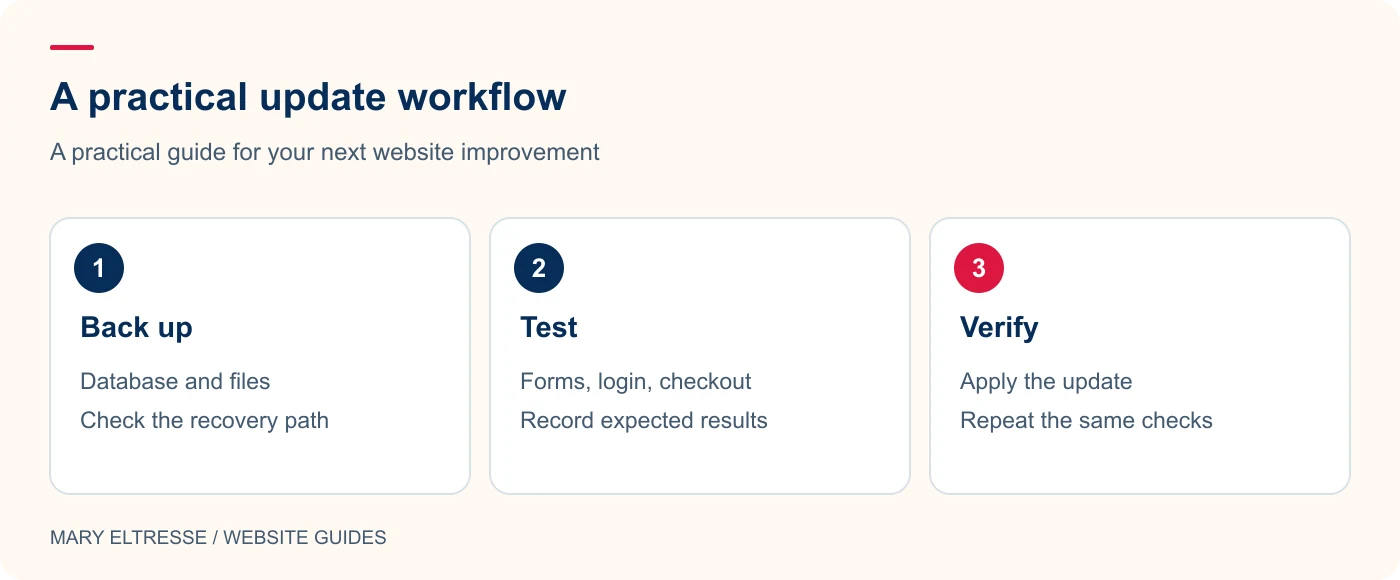
Take a fresh database backup and a copy of the relevant site files. Check that the backup completed, that you know where it lives, and that someone has permission to restore it. For stores and membership sites, note that restoring an older database can discard new orders or registrations. Agree on a recovery plan that accounts for new activity. Keep backup archives outside publicly accessible folders, and do not treat a downloaded theme ZIP as a complete website backup.
Example: Hypothetical example: A service business has a five-page website and one enquiry form. Before updating, its maintainer saves the database and files, notes where the backup is stored, and sends a controlled test enquiry. After the update, they repeat that test and confirm the email arrives. A successful homepage load alone would not verify this customer journey.
3. Test the journeys that matter to your business
Write down five or six real tasks before you begin: opening a service page, sending an enquiry, signing in, resetting a password, placing a test order, and accessing protected content. Use a staging copy for compatibility checks when available, but keep urgent security work moving rather than waiting for a perfect test environment. Disable outbound email and live payment actions on the copy. Compare the results with the same tasks after the production update.
4. Apply the change and check more than the homepage
Keep one person responsible for the update window so two people do not change the same installation at once. Follow the supported update route for the site and avoid mixing unrelated redesign work into the maintenance task. Afterwards, review important pages on mobile and desktop, submit a controlled form test, and check the browser console and server error log. A working homepage does not establish that private member screens, scheduled tasks, or third-party integrations are healthy.
Example: Hypothetical example: An update breaks a store’s shipping calculation. The maintainer pauses further changes and compares the error with the staging test. Before restoring a database, they check for orders placed since the backup, so recovery does not silently discard new customer activity. The incident note records the affected integration and the next action.
5. Turn the result into a useful maintenance record
Record what changed, when it changed, who checked it, and any follow-up work. Note whether a cache purge was necessary and which integrations were tested. If the update reveals a plugin conflict, identify the responsible component rather than disabling security fixes indefinitely. My website care routine guide explains how to make these checks repeatable. For broader performance work, keep a separate improvement list so your WordPress security update stays focused on its immediate purpose.
Your practical checklist
- Confirm the installed version against the official release notice.
- Verify a recent file and database backup is available.
- Identify the person responsible for restoring service if necessary.
- Test enquiry forms, account access, and checkout where applicable.
- Review error logs and caches after completing the update.
- Record the outcome and schedule any remaining compatibility work.
- Check the live version again instead of assuming the update finished.
Frequently asked questions
Should I delay a security update until my next redesign?
No. Treat security maintenance and design changes as separate work. Use a focused compatibility check and a recovery plan to handle the update promptly, then schedule the redesign independently.
Does an update prove the site is clean?
No. Updating addresses the software version. If there are signs of intrusion, investigate the account, file, and server activity separately; do not assume an update removes existing malicious changes.
Make your next website improvement count
Need help planning a WordPress security update without losing track of your business workflows? Contact Mary Eltresse for a practical website-care review.