


WordPress scrolling performance affects how comfortable an article feels long before a visitor reaches the bottom. A page can load quickly and still stutter when a sticky header moves, a slider starts, or a large script handles touch input. Better browser engineering helps, but website owners still control the amount of work their pages ask the browser to do.
What changed in 2026
In July 2026, the Chromium team reported a 48% reduction in the frequency of janky scrolls in Chrome on Android between 2023 and 2026. That is a browser-level result, not a promised improvement for an individual WordPress site. The useful lesson is to test the full interaction pipeline and distinguish browser behaviour from work introduced by your own page.
Source: How Chrome reduced scroll jank on Android. News context checked November 15, 2026.
1. Measure WordPress scrolling performance on real pages
Pick a representative article, a service page, and a content-heavy listing. Use an actual phone as well as desktop tools, and repeat the same scrolling route several times. Note whether the problem begins near an image, video, sticky element, or third-party widget. Keep the browser version and device in the test note. A single high lab score is not a substitute for observing the interaction your visitor actually experiences, especially on a less powerful device.
2. Review scripts that listen to input
Look for unnecessary handlers attached to scroll, touch, and wheel events. Ask what each listener does and whether it must run at the frequency it currently uses. Do not mark every event listener passive without checking its behaviour, because some interactions intentionally cancel default input. Consolidate duplicate work and avoid repeatedly reading layout immediately after changing styles. The passive event listener guide in the Digital Vault goes deeper into implementing and testing this kind of change.
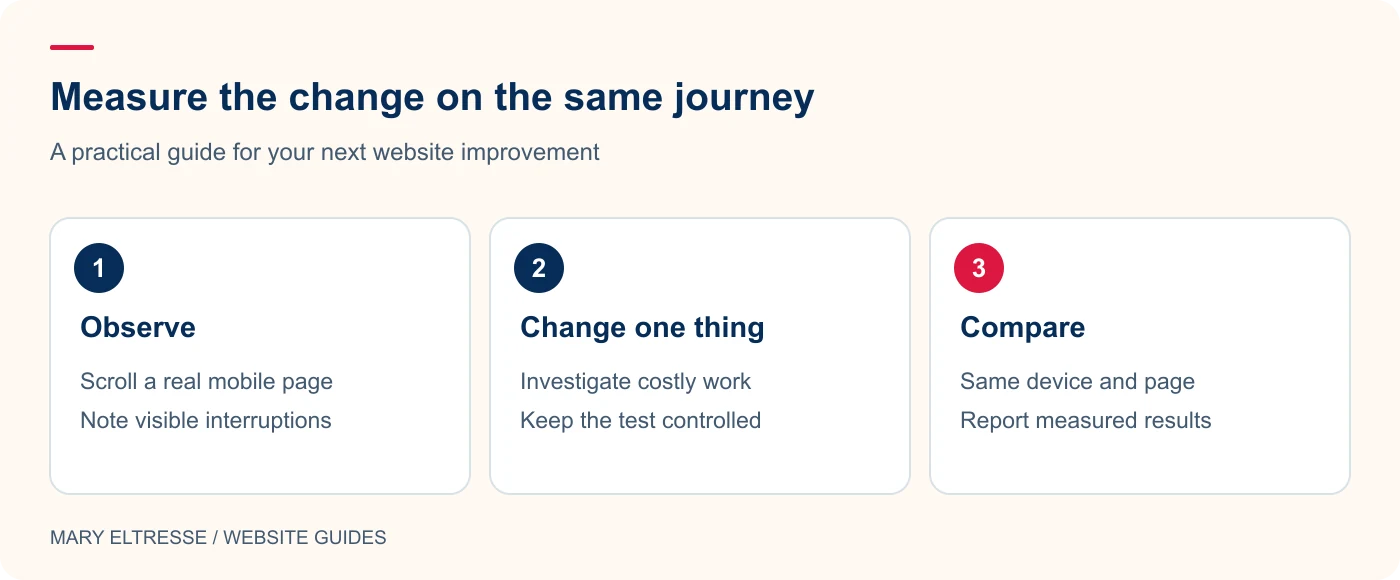
Example: Hypothetical example: A long article feels jerky on an older phone. Record a performance trace while scrolling past its sticky header and image sections. Temporarily isolate one animation in a test copy, then repeat the same journey. If the interruption disappears, investigate that implementation rather than adding unrelated optimization plugins.
3. Simplify sticky and overlapping elements
A header, floating chat widget, sticky contents list, and animated promotion can compete for attention as well as rendering work. Temporarily disable one component at a time on a test copy to understand its contribution. Check whether the sticky element is useful on a small screen and whether it covers the article or the focused control. Reducing visual clutter can improve the experience even when the measured performance change is modest. Keep the result tied to a real task.
4. Check images and embedded content
Large images and media can affect the experience as they appear lower down a page. Use appropriately sized images and reserve space so surrounding content does not jump unexpectedly. Review video and social embeds separately from your own content. A thumbnail that opens a media player on request may be more suitable than loading several heavy embeds immediately. My LCP optimization resource covers loading priorities, but remember that initial rendering and scrolling are related questions rather than identical measurements.
Example: Hypothetical example: A script listens for touch input only to collect interaction data. Review whether it needs to cancel the browser’s default action before changing its listener options. Some interactions legitimately require cancellation. Test the actual component after the change, including navigation and gestures, instead of applying a blanket replacement across the site.
5. Make animation optional and restrained
Repeated reveal effects, large blur transitions, and several moving sections can make an article feel busy. Keep motion purposeful, pause it when a visitor interacts, and respect reduced-motion preferences. Do not hide important content indefinitely while waiting for an animation script to initialise. Check the page when the script fails and when a user navigates directly to a heading. A smooth-looking effect should not make keyboard navigation less predictable or force readers to wait before accessing the text.
6. Verify one change at a time
Record the baseline, make one focused adjustment, and repeat the same device test. Keep changes that improve the experience without breaking the interaction, and remove experimental rules that did not help. Avoid claiming a percentage gain based on one run or borrowing a browser vendor benchmark as your own result. Improving WordPress scrolling performance is an iterative diagnostic task. A useful report explains what was measured, what changed, and which limitations remain.
Your practical checklist
- Reproduce the stutter on a representative phone.
- Record the page section and interaction that triggers it.
- Review input listeners and repeated layout work.
- Test sticky elements and third-party widgets separately.
- Reserve media space and use sensible image sizes.
- Respect reduced motion and verify the result after each change.
Frequently asked questions
Does a better browser mean I can ignore slow page scripts?
No. Browser improvements and page-level improvements address different work. You still need to review the scripts, media, and interactions your website introduces.
Will passive listeners fix every scrolling problem?
No. They address particular input-handling situations. Rendering, layout, media, and third-party code can also contribute, so diagnose the page before choosing a fix.
Make your next website improvement count
If your site feels heavy on mobile, ask Mary Eltresse for a focused WordPress scrolling performance review with clear findings and practical next steps.